Lindy Academy
Learn Lindy in a minute at a time
Short videos that show how to set up and use Lindy. Each covers one setup, in the order most people do it, with the steps in text below the video.
Setup
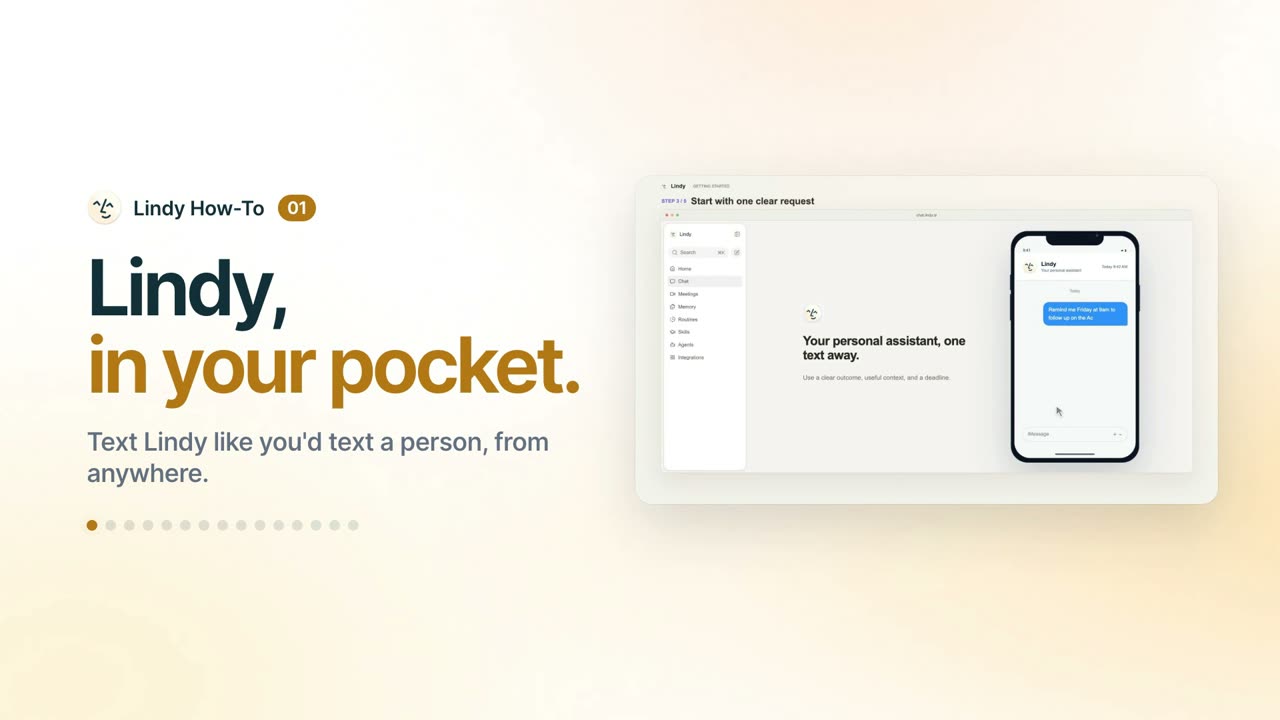
Add your phone, pin Lindy in Messages, and text it your first request. 0:41
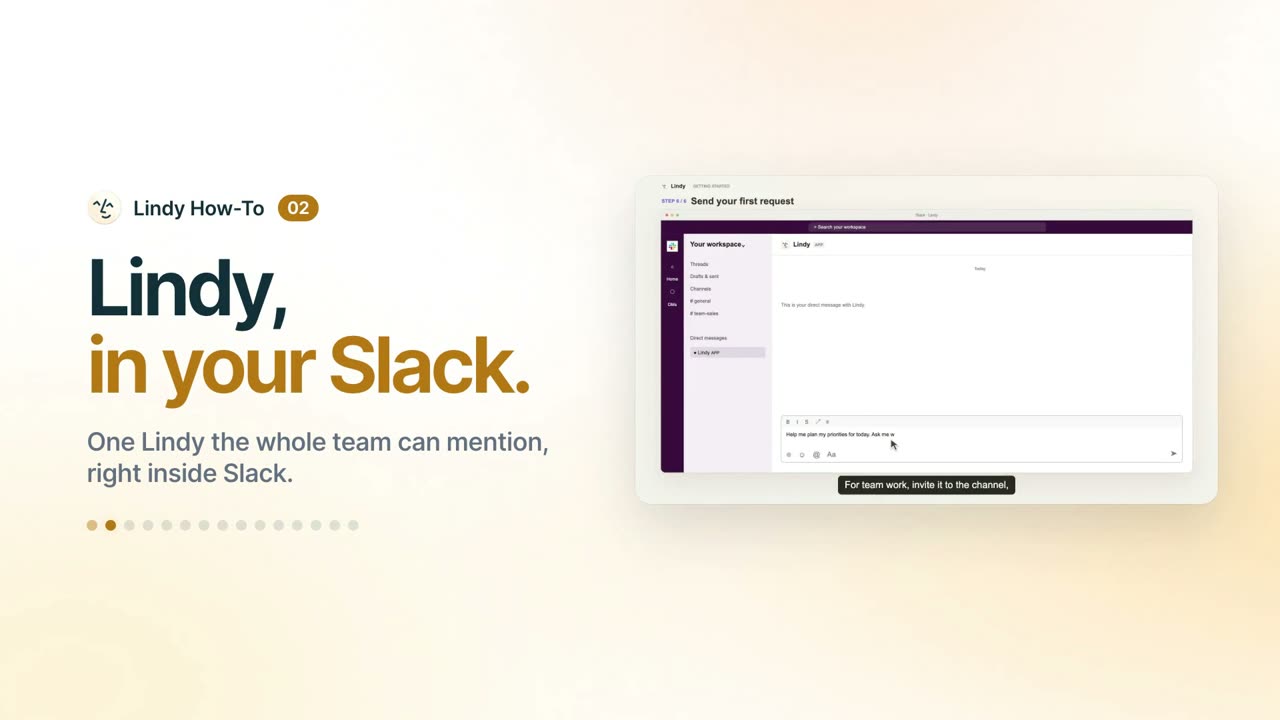
Install Lindy in Slack for the team, link your account, and send your first DM. 0:50
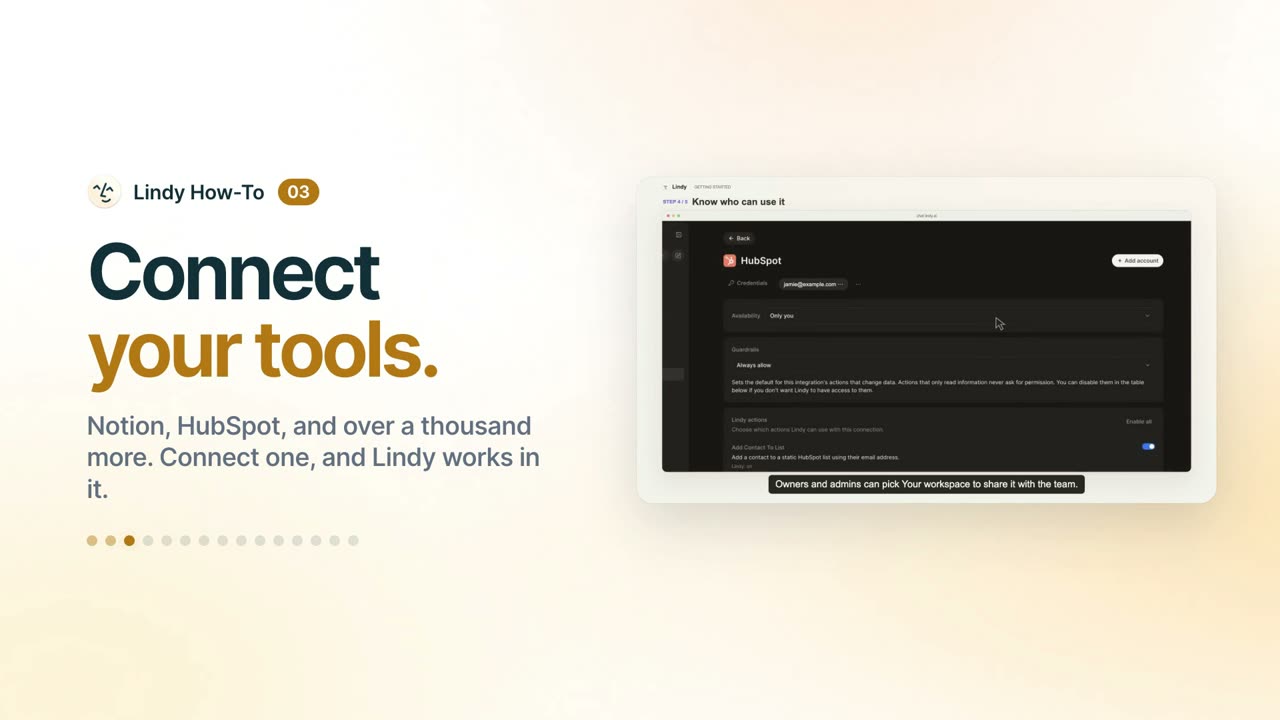
Connect a tool like HubSpot or Notion, choose who can use it, and test it. 0:43
Inbox
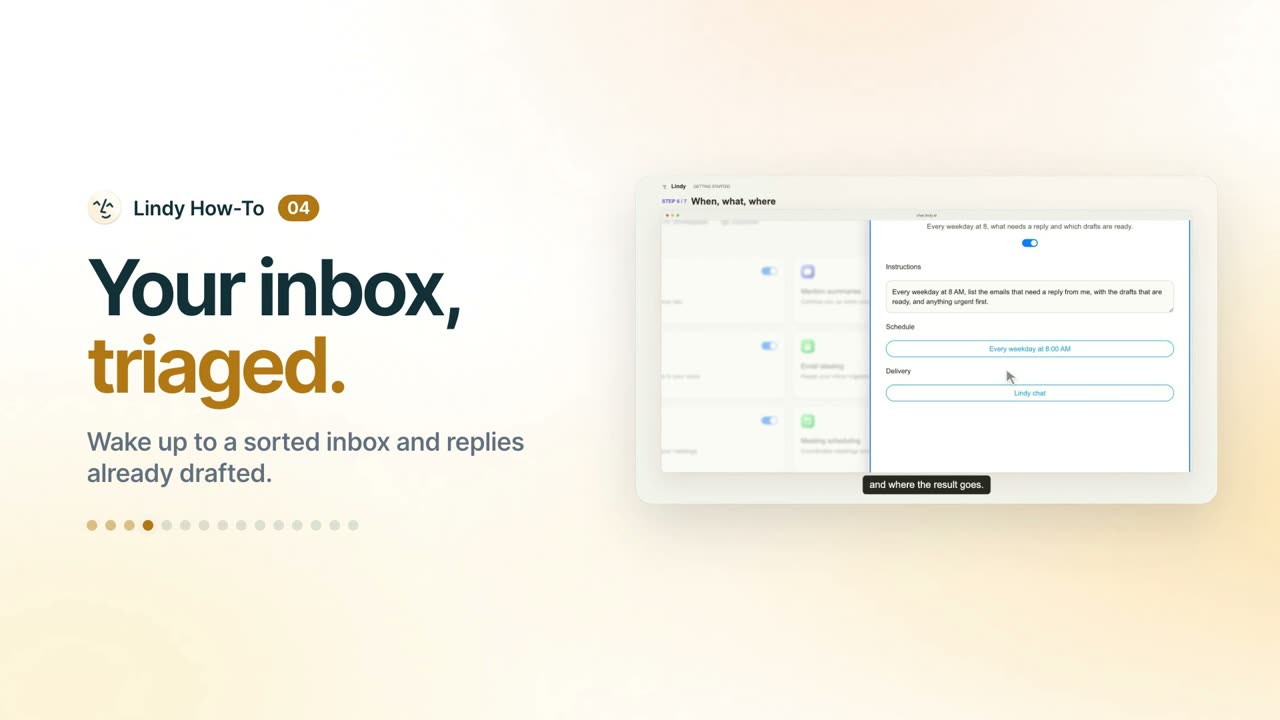
Turn on Email labeling and Email drafting, add a label, and build a weekday inbox routine. 1:08
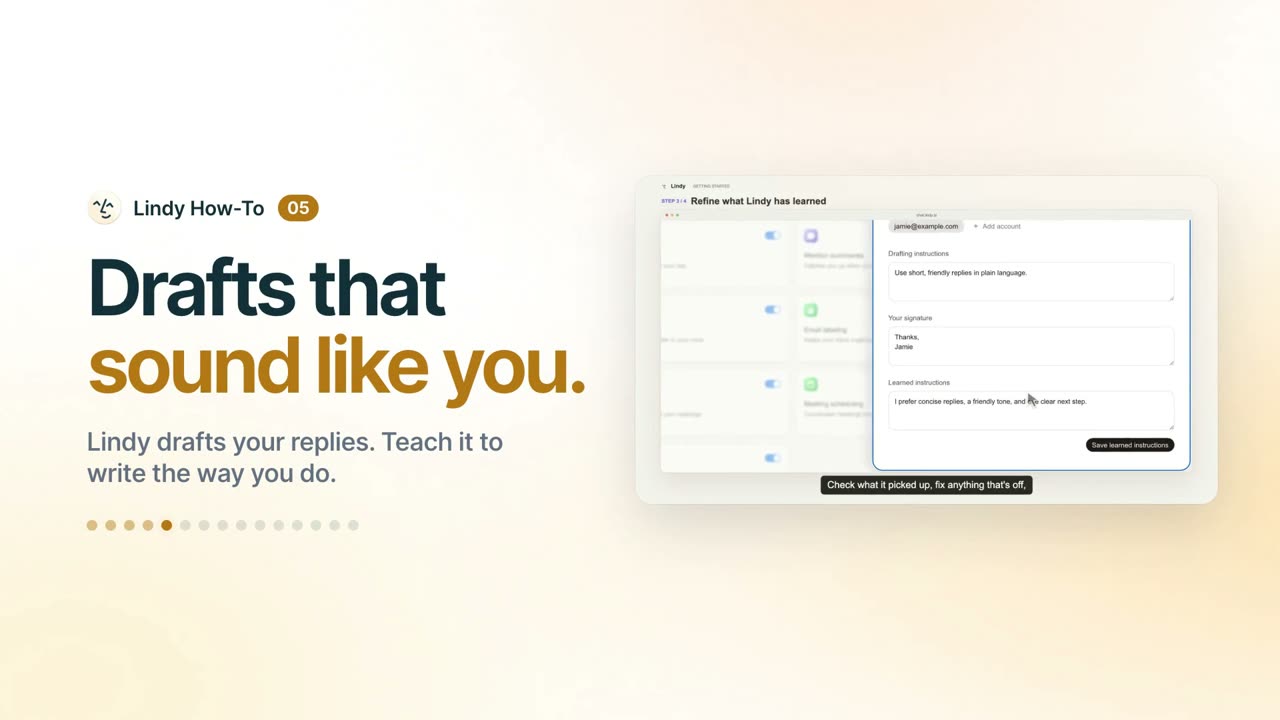
Set drafting instructions, check learned instructions, and add your signature. 0:37
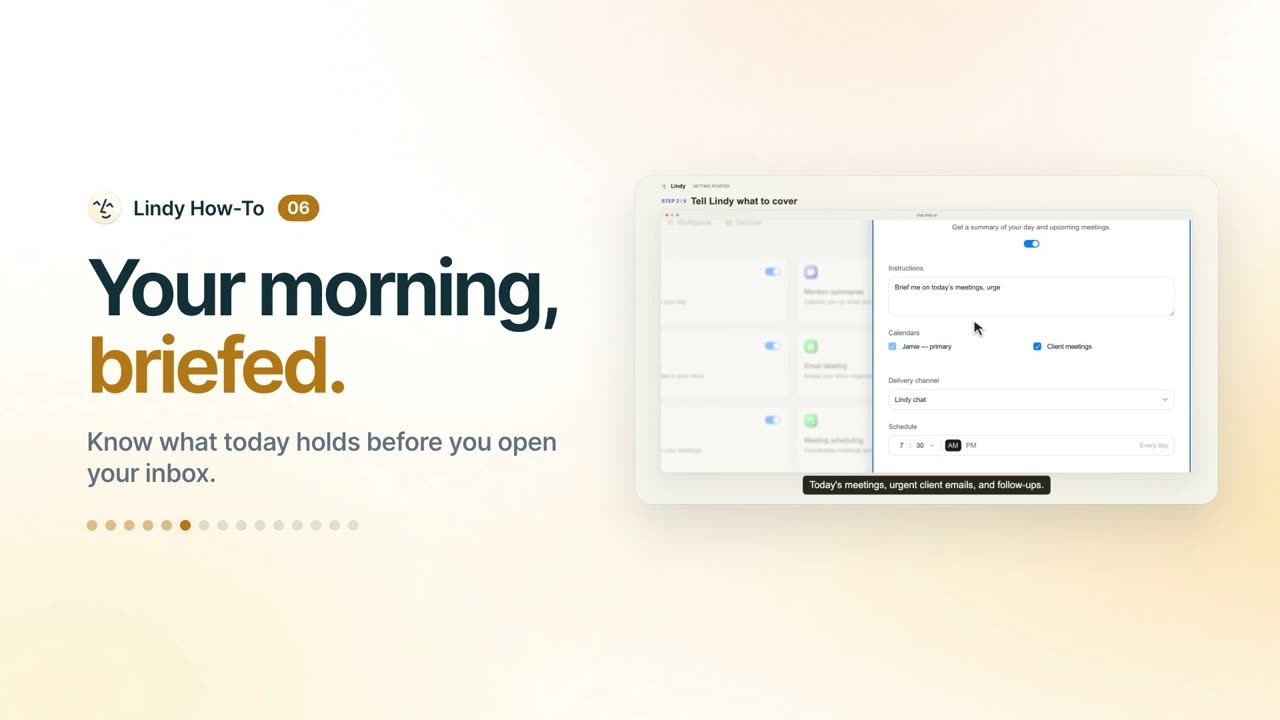
Choose what your daily brief covers, which calendars it reads, where it arrives, and when. 0:50
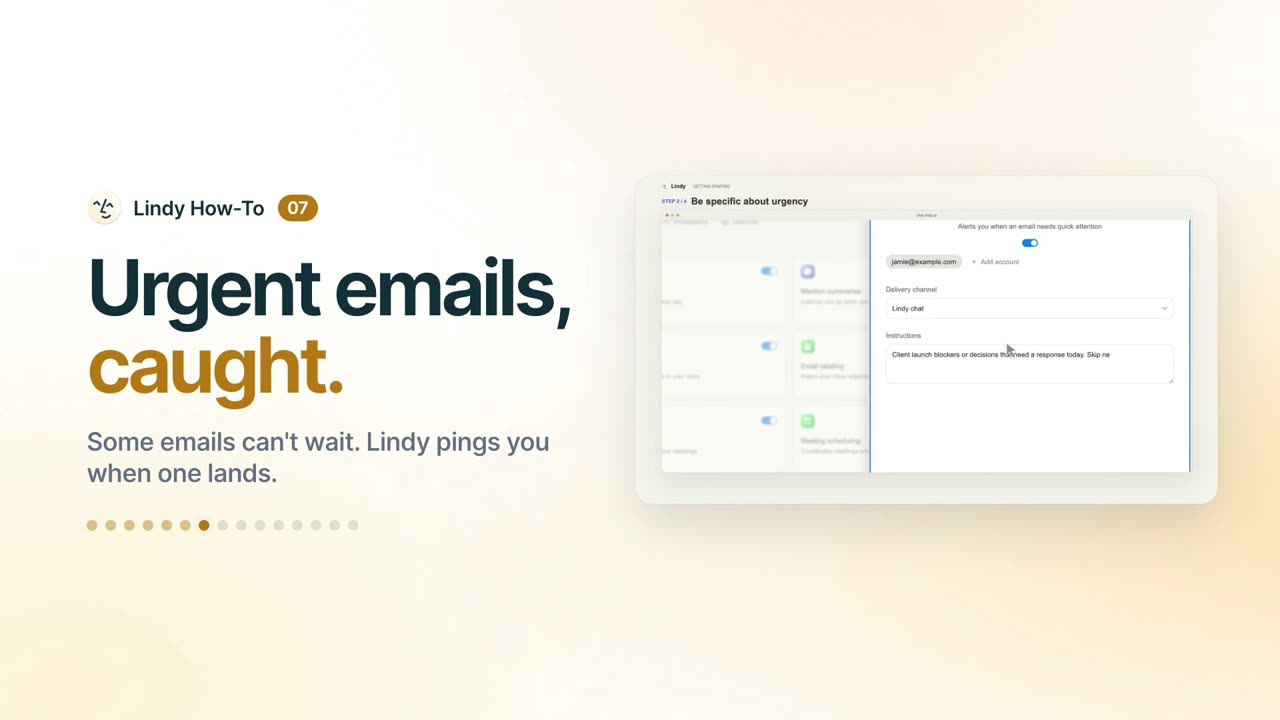
Describe what counts as urgent, what to ignore, and where alerts reach you. 0:39
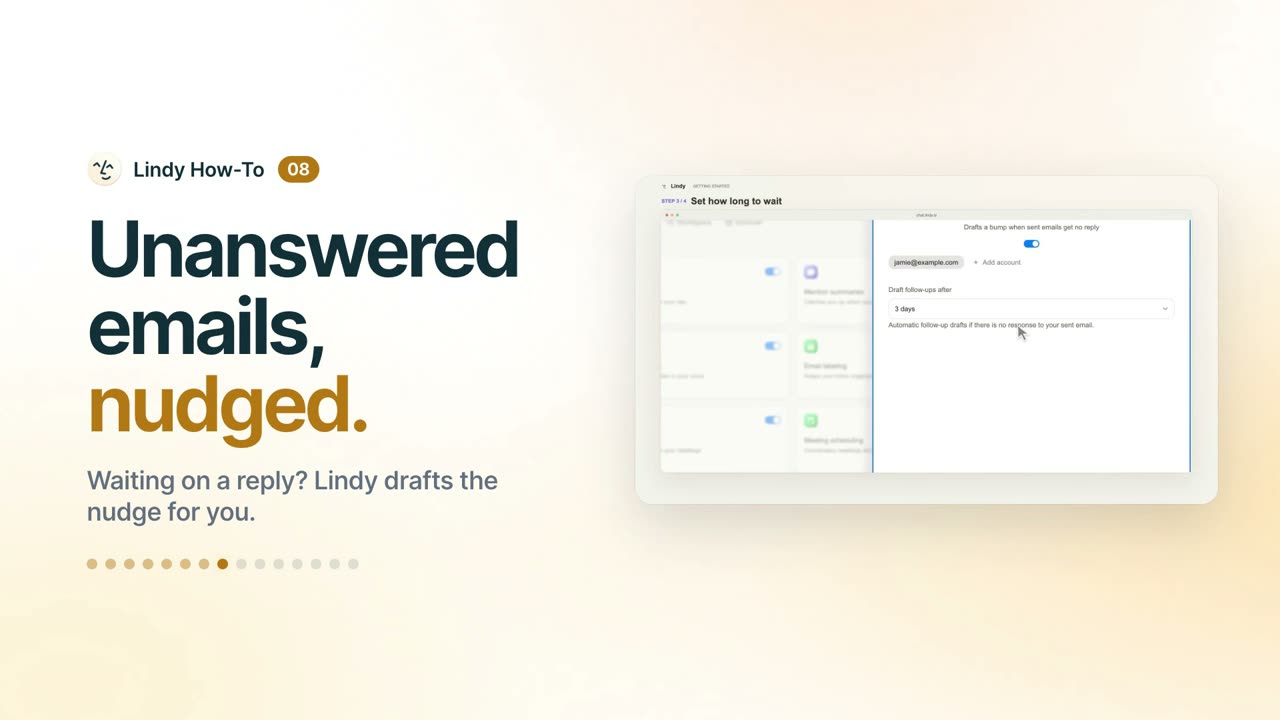
Turn on Follow-up bumps and choose how long to wait for a reply. 0:31
Meetings
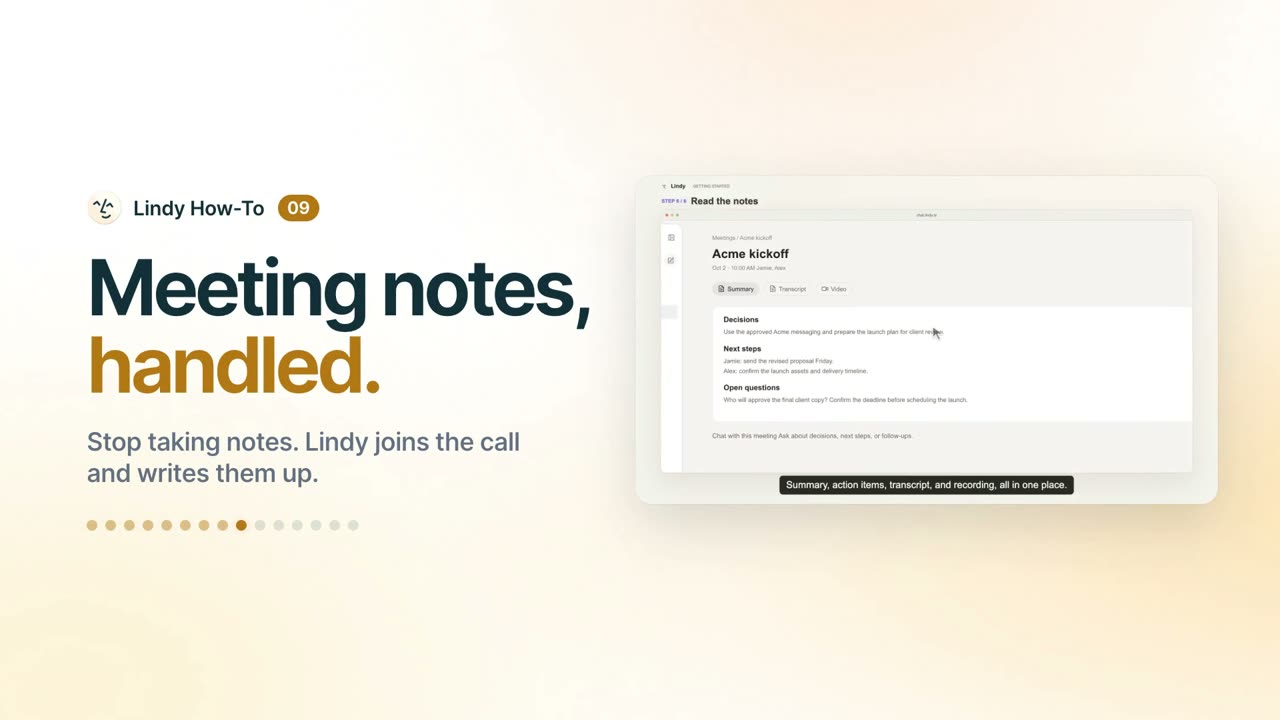
Turn on Meeting recording, name the notetaker, set what the summary includes, and find the notes. 0:46
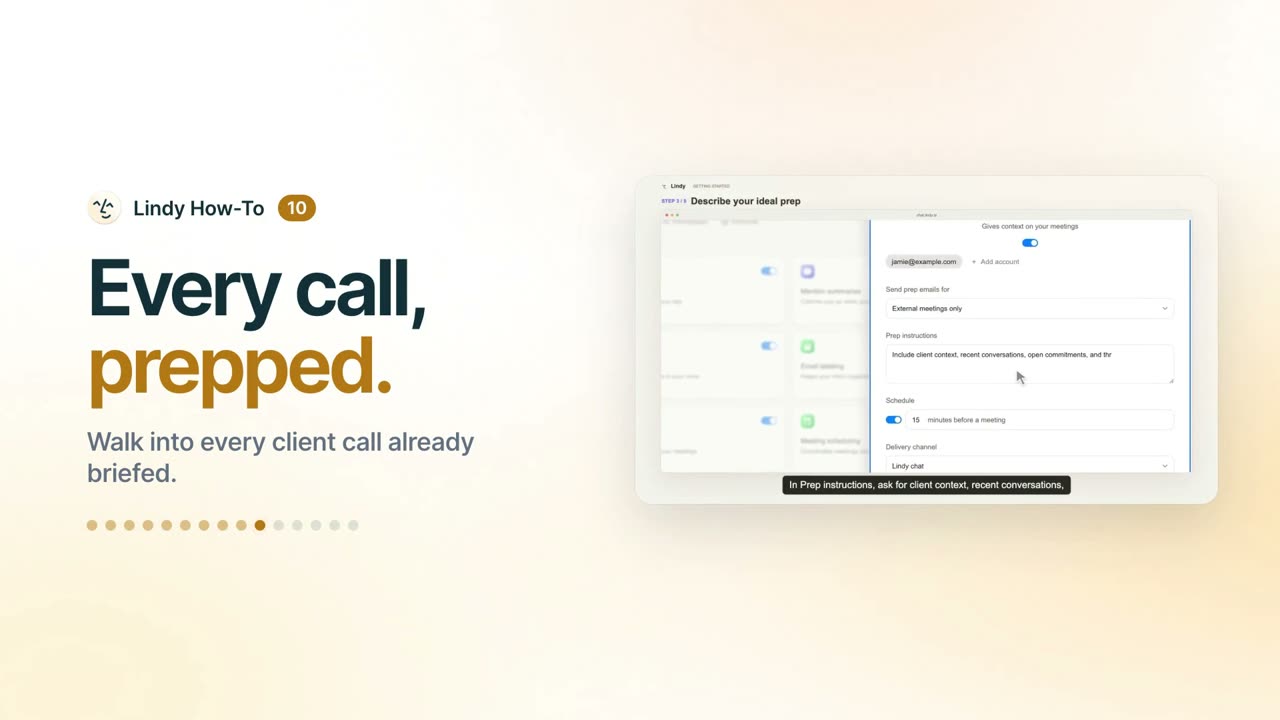
Turn on Meeting prep, choose which meetings, and set when and where prep arrives. 0:44
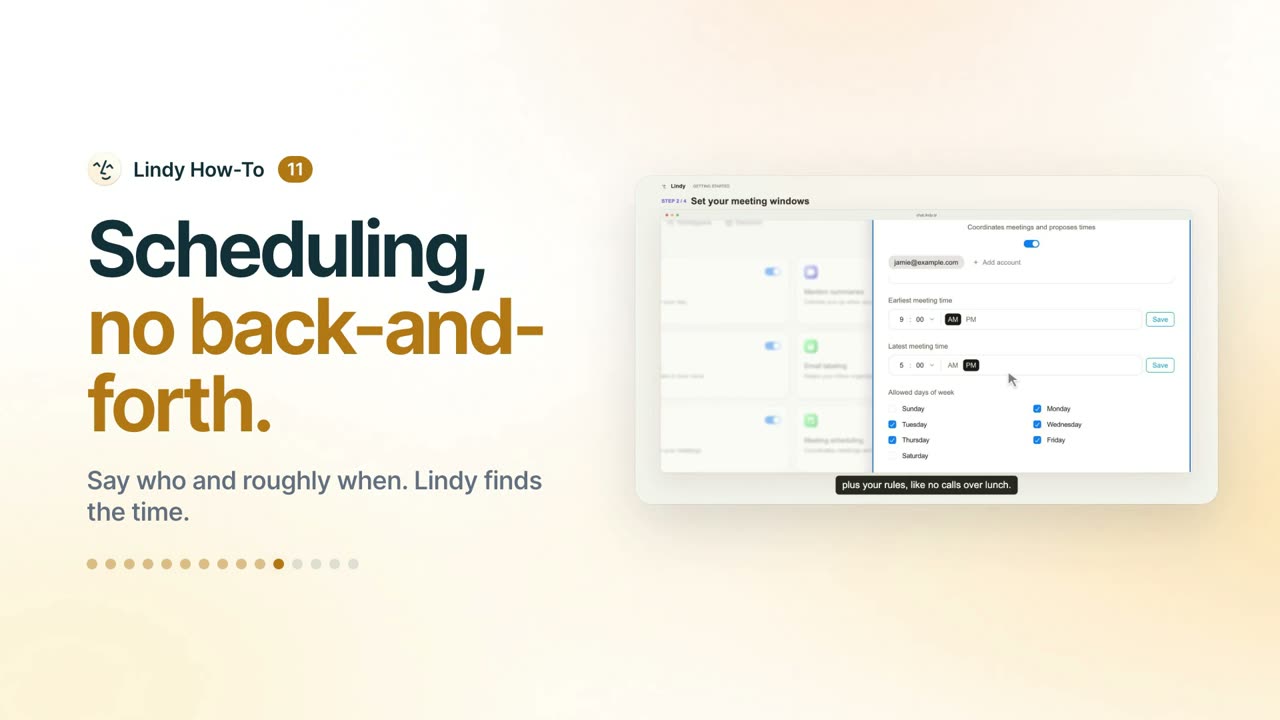
Turn on Meeting scheduling, set your meeting hours and defaults, then hand off a booking. 0:35
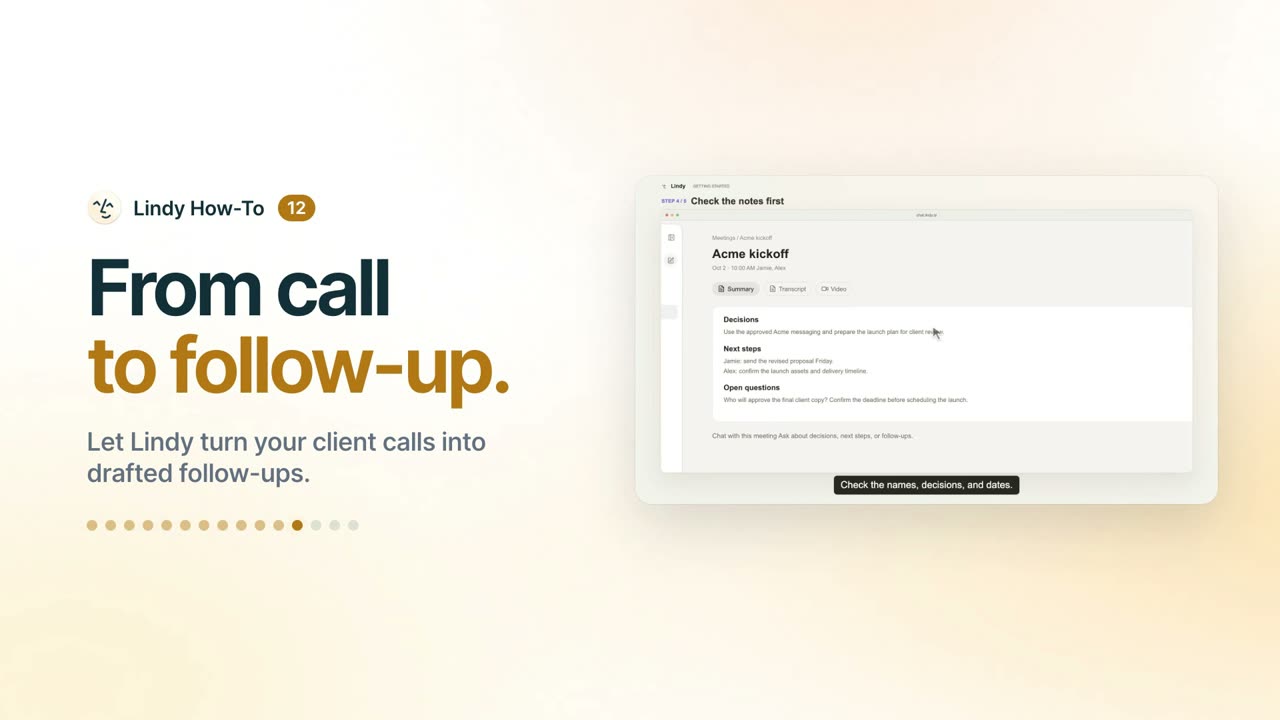
Choose who gets the recap and what Lindy drafts after a recorded call. 0:43
Reminders, memory, and skills
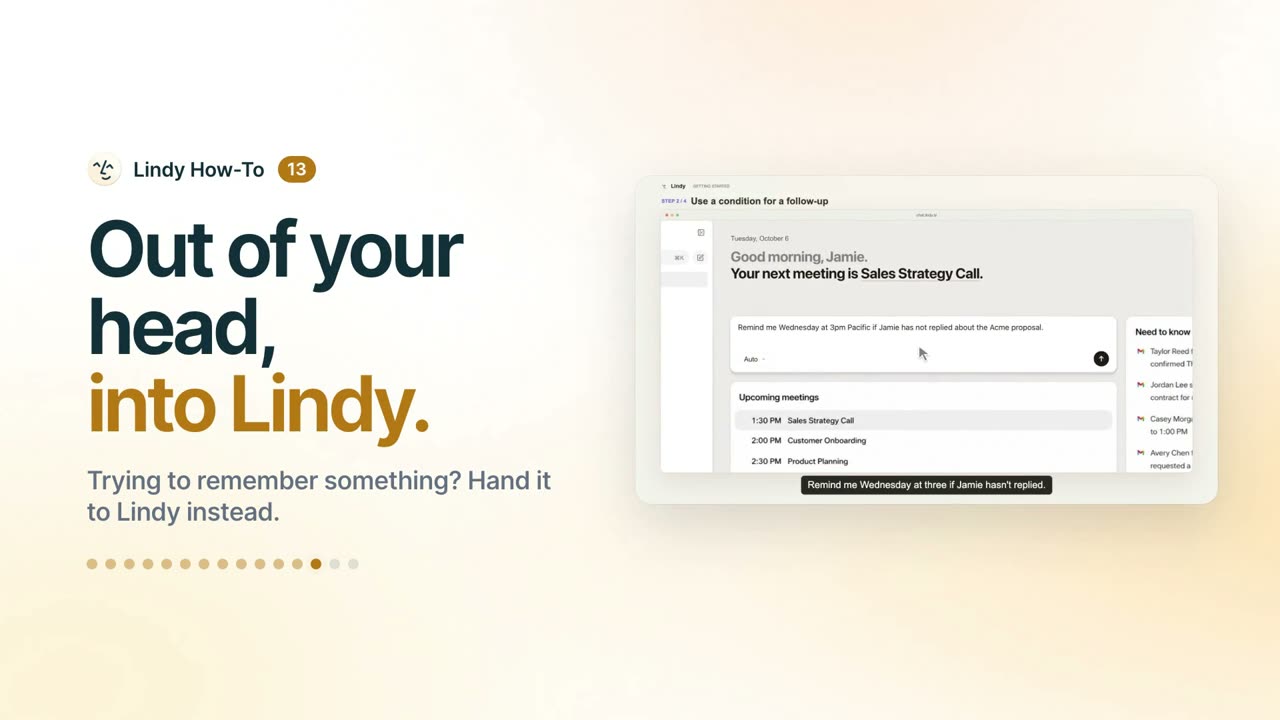
Set timed and conditional reminders, list them, and move them. 0:39
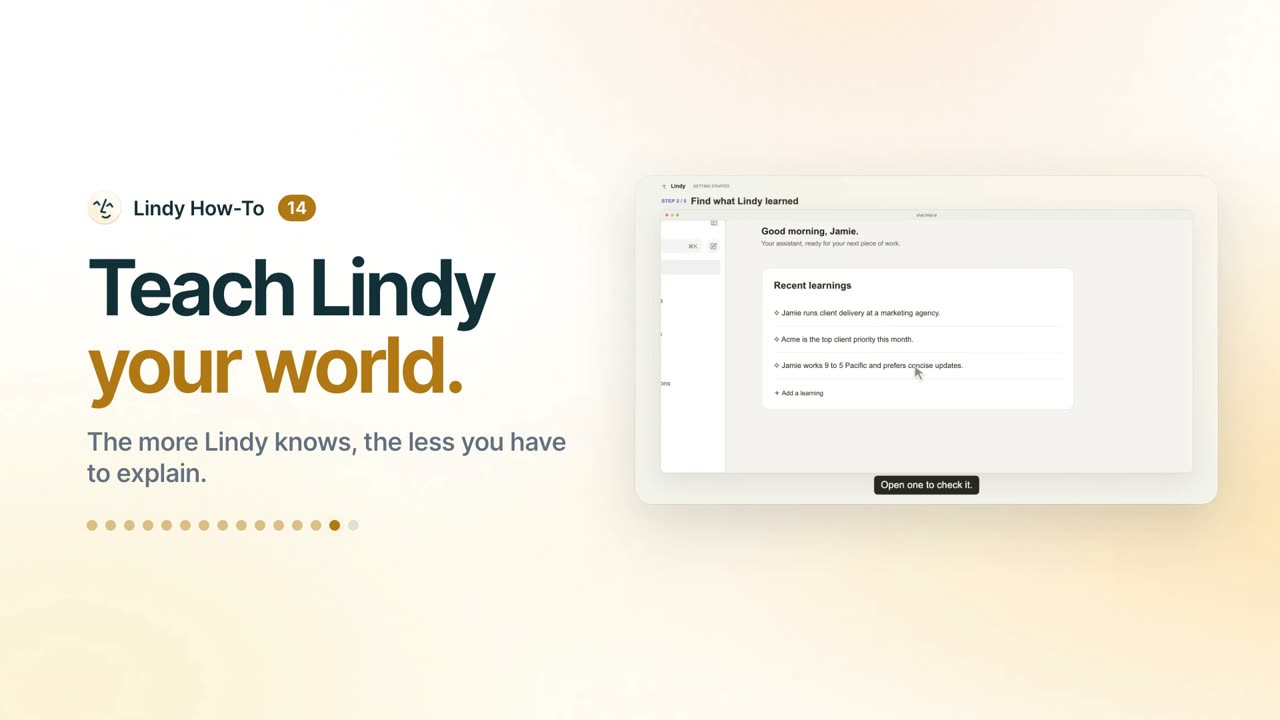
Share your role and priorities, check what Lindy learned, and add client files to Memory. 0:48
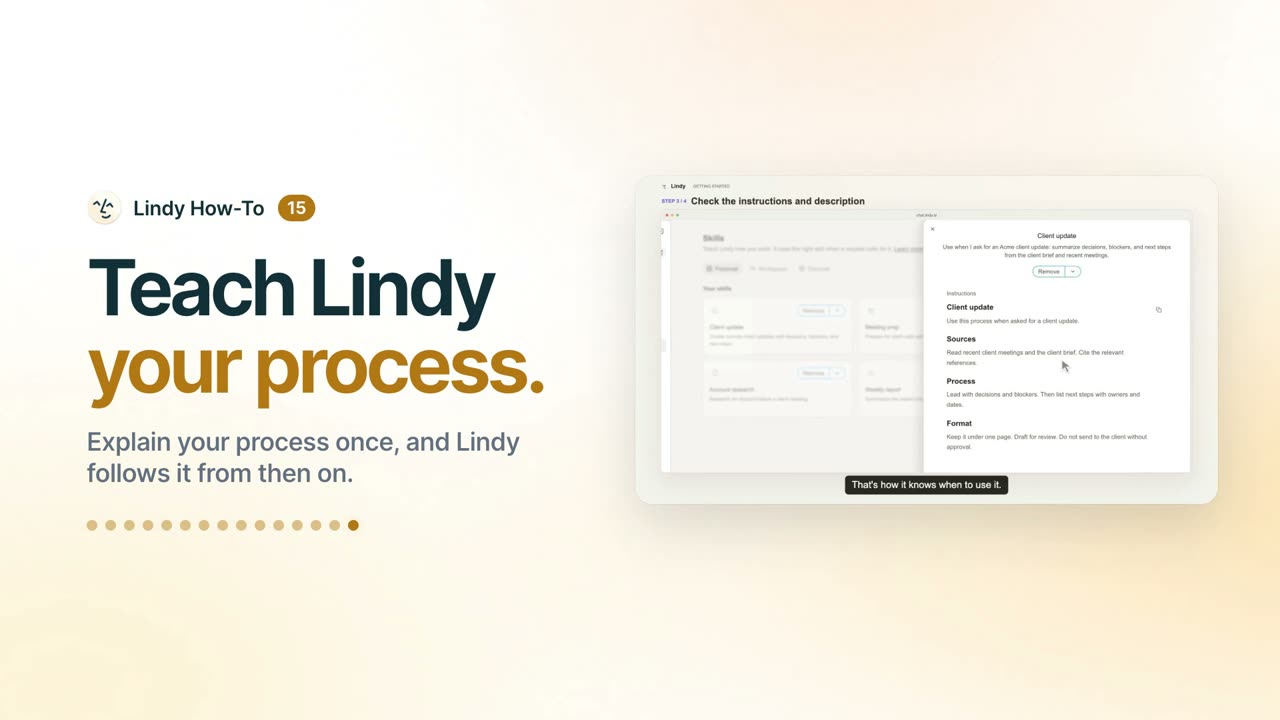
Save a personal skill in chat, check its description, and use it. 0:43
Lindy Skills: see what Lindy makes

Turn a long video into short clips, ready to post. 0:33

Describe the post. Lindy designs every slide. 0:35
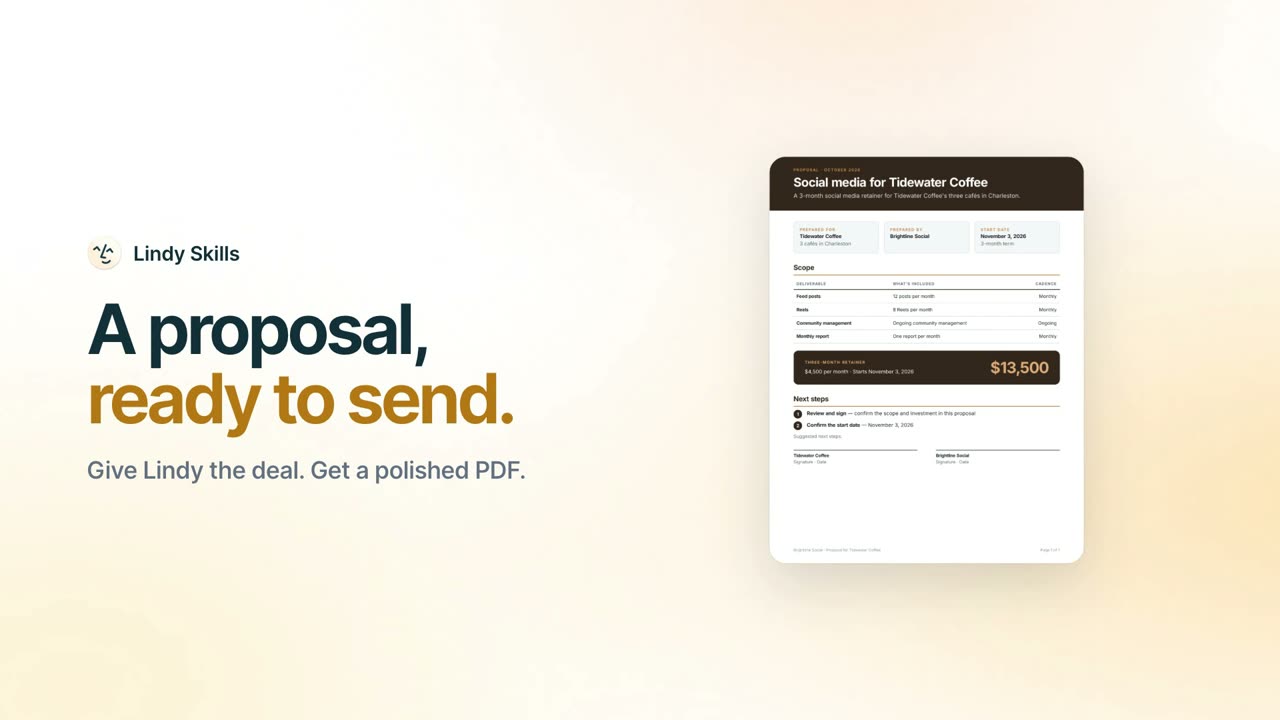
Give Lindy the deal. Get a polished PDF. 0:33
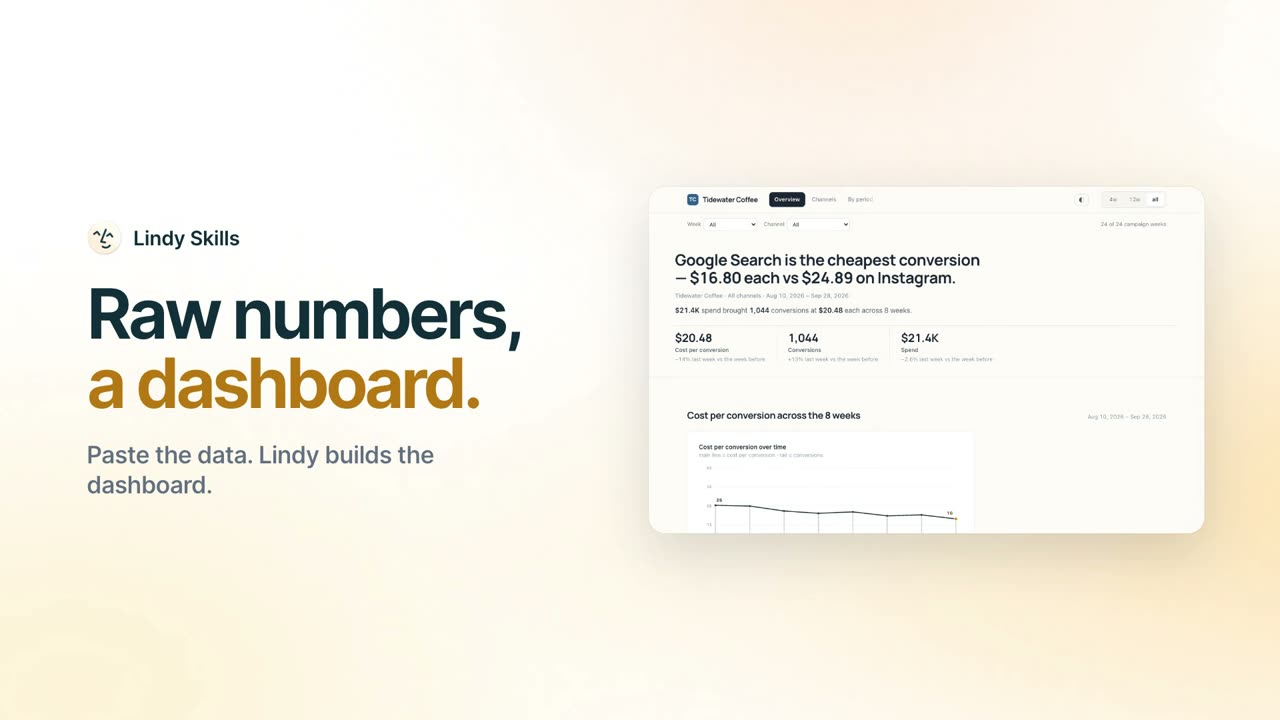
Paste the data. Lindy builds the dashboard. 0:33
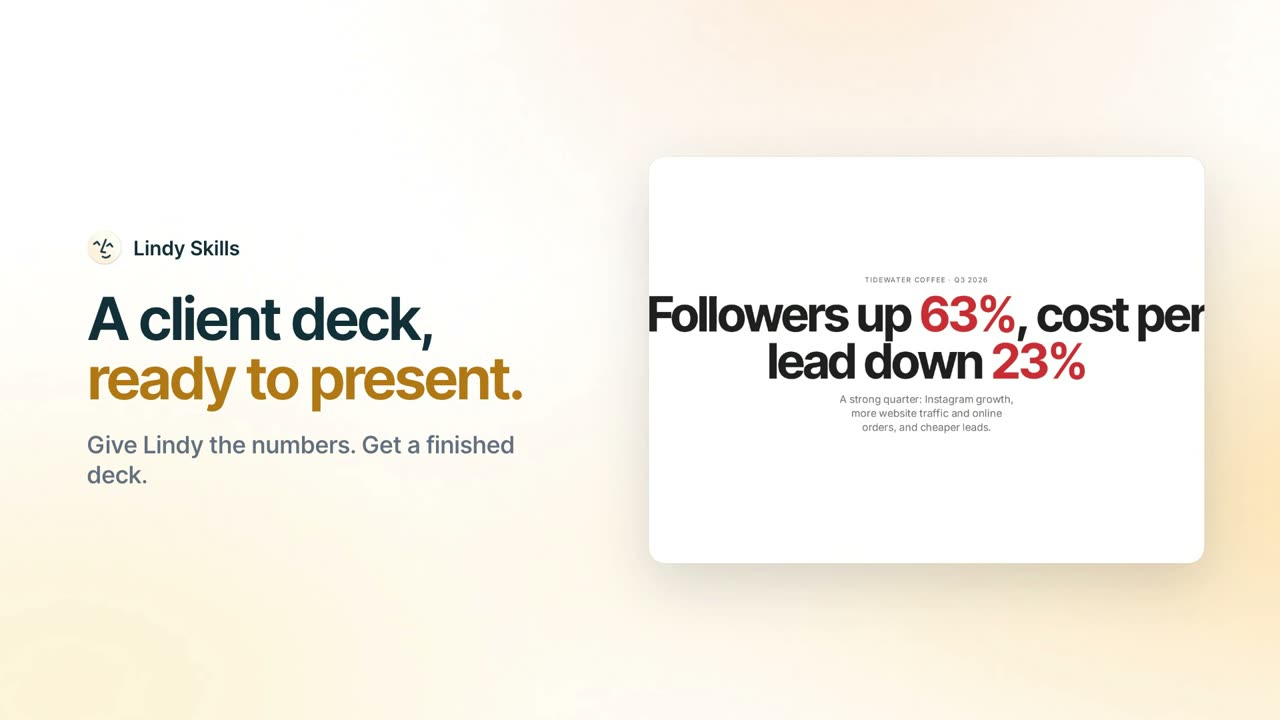
Give Lindy the numbers. Get a finished deck. 0:35
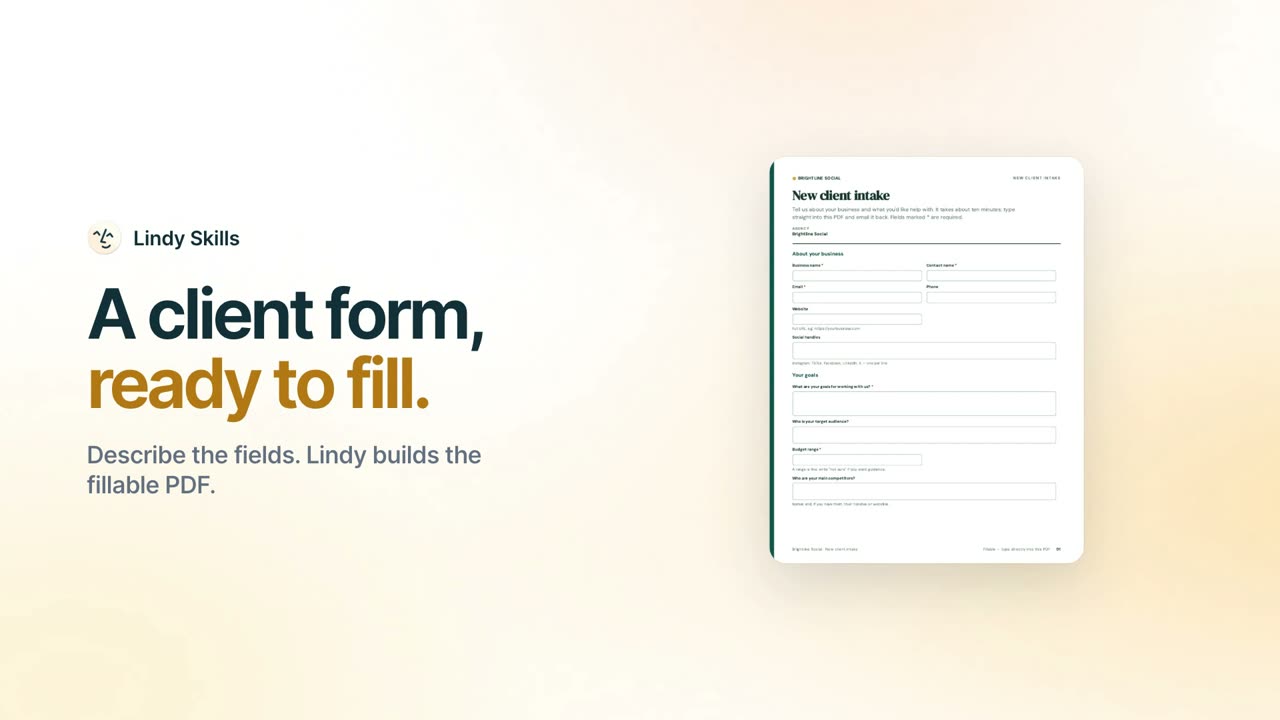
Describe the fields. Lindy builds the fillable PDF. 0:31

Describe the offer. Lindy builds the page. 0:35
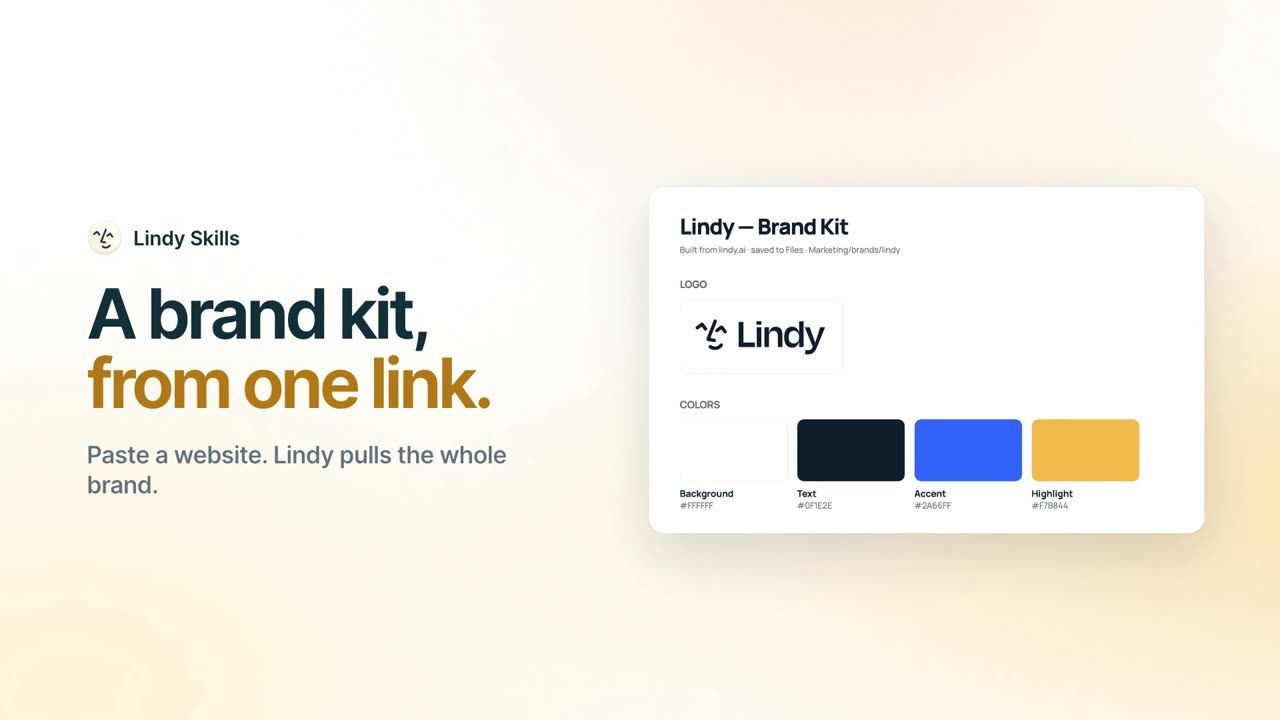
Paste a website. Lindy pulls the whole brand. 0:33
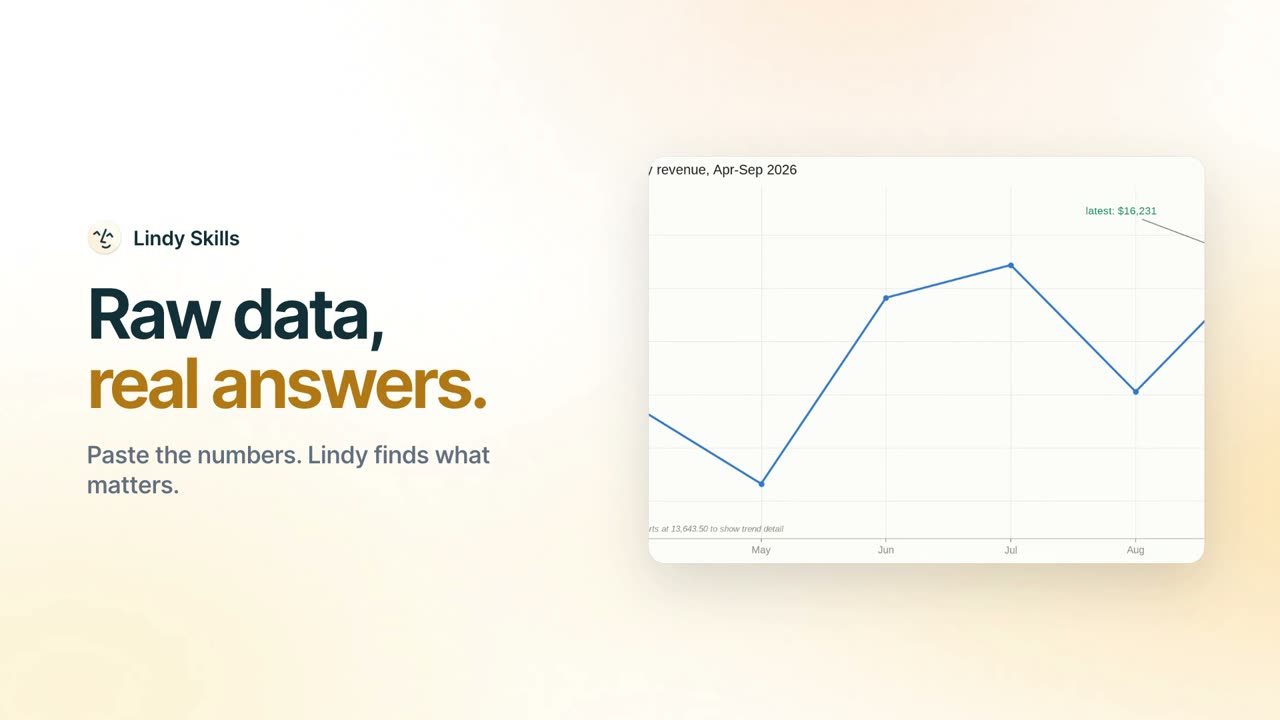
Paste the numbers. Lindy finds what matters. 0:33
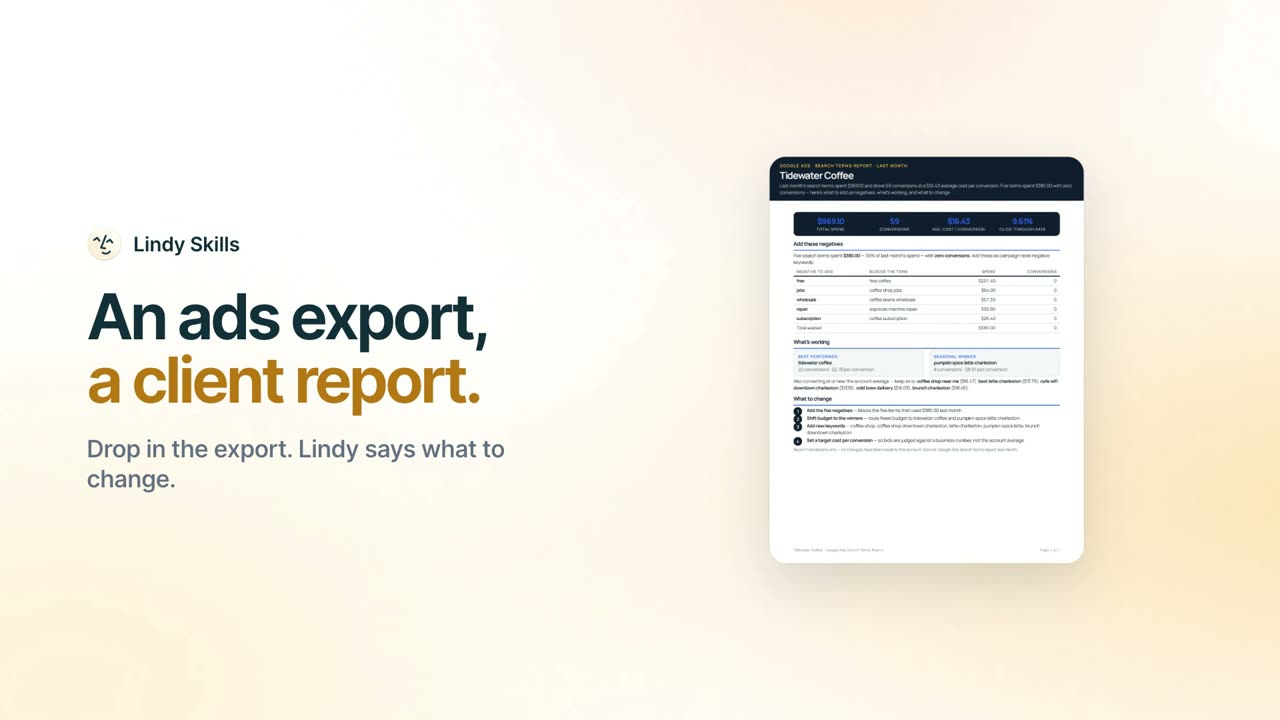
Drop in the export. Lindy says what to change. 0:33
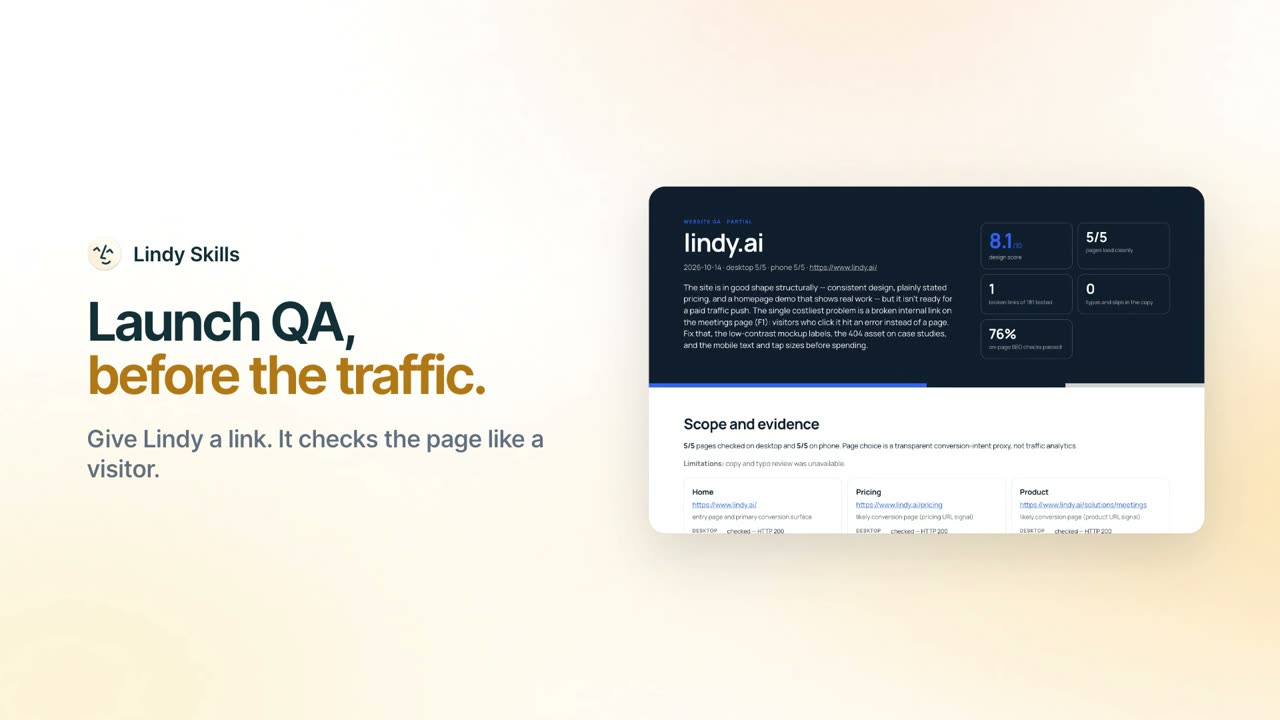
Give Lindy a link. It checks the page like a visitor. 0:35

Describe the video. Lindy makes it. 0:33
Write the brief. Lindy records it. 0:41
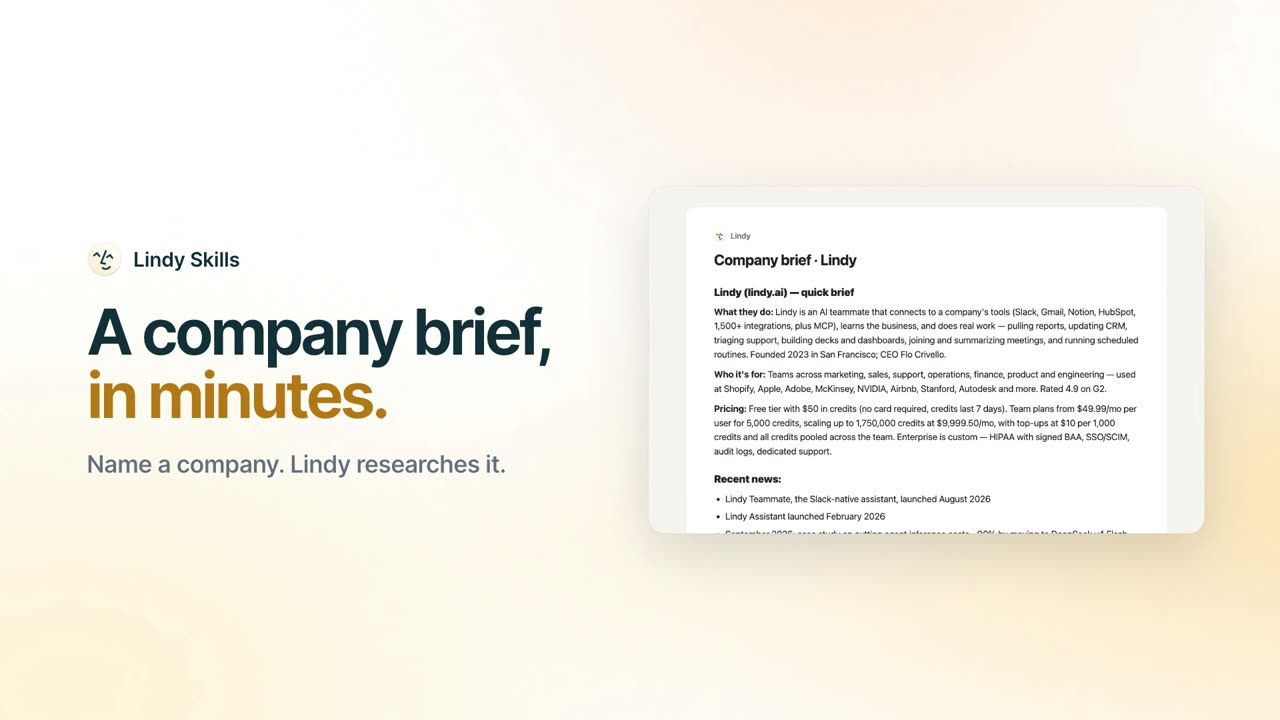
Name a company. Lindy researches it. 0:31
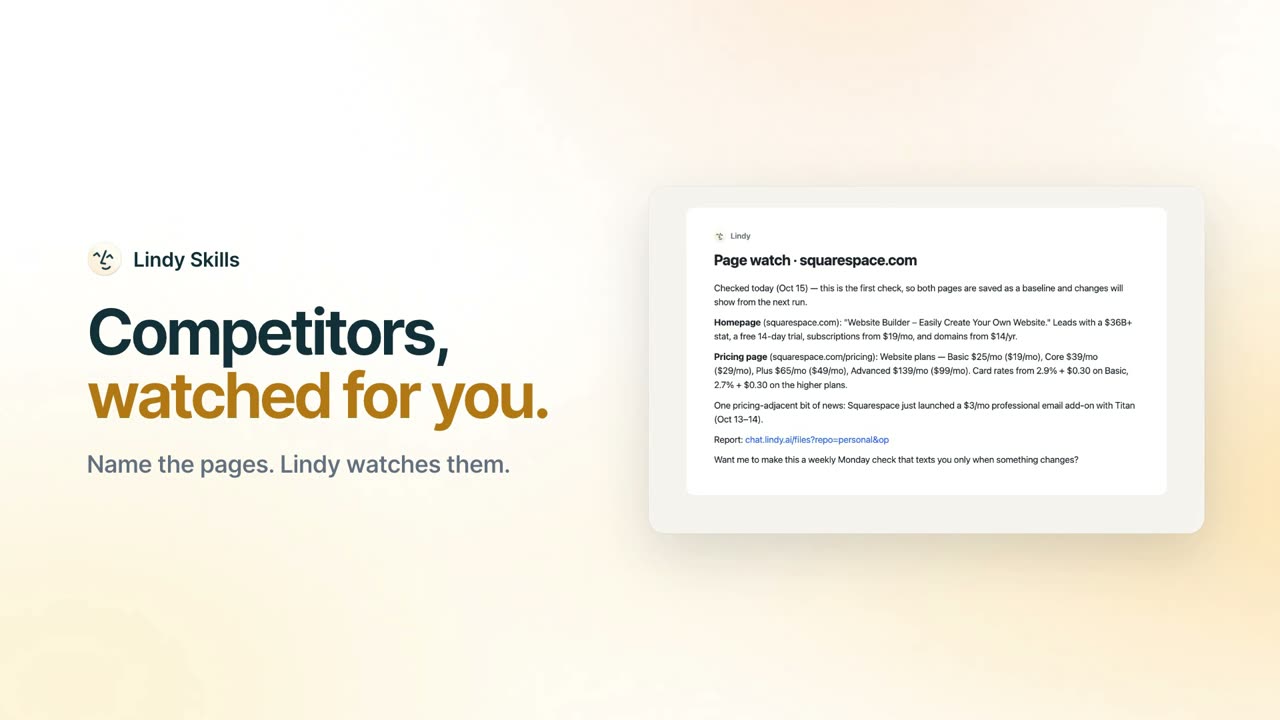
Name the pages. Lindy watches them. 0:29
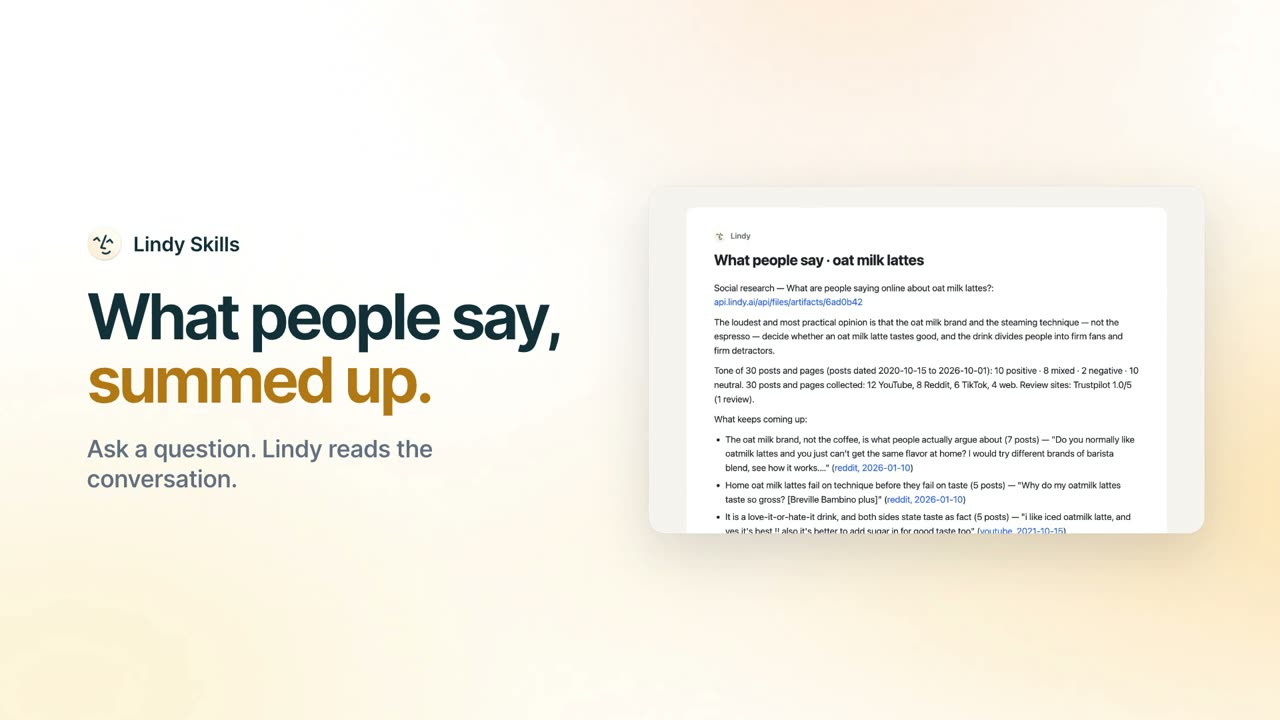
Ask a question. Lindy reads the conversation. 0:31
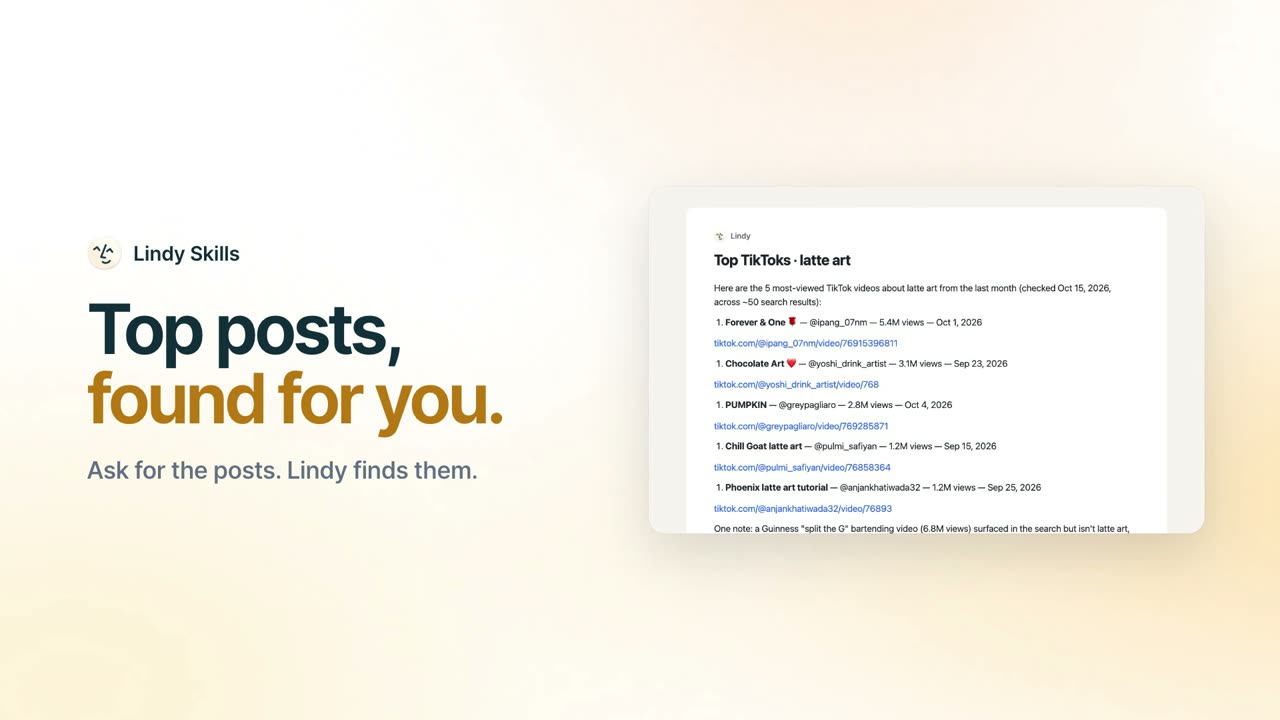
Ask for the posts. Lindy finds them. 0:31
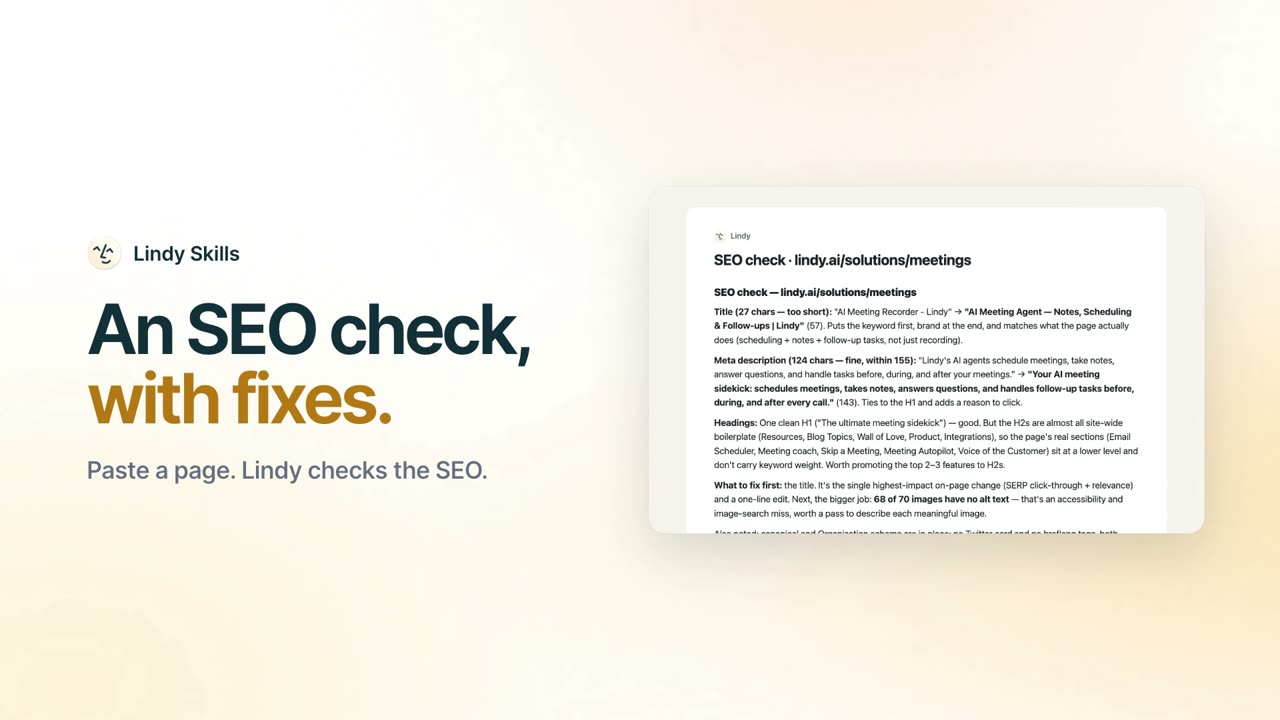
Paste a page. Lindy checks the SEO. 0:29
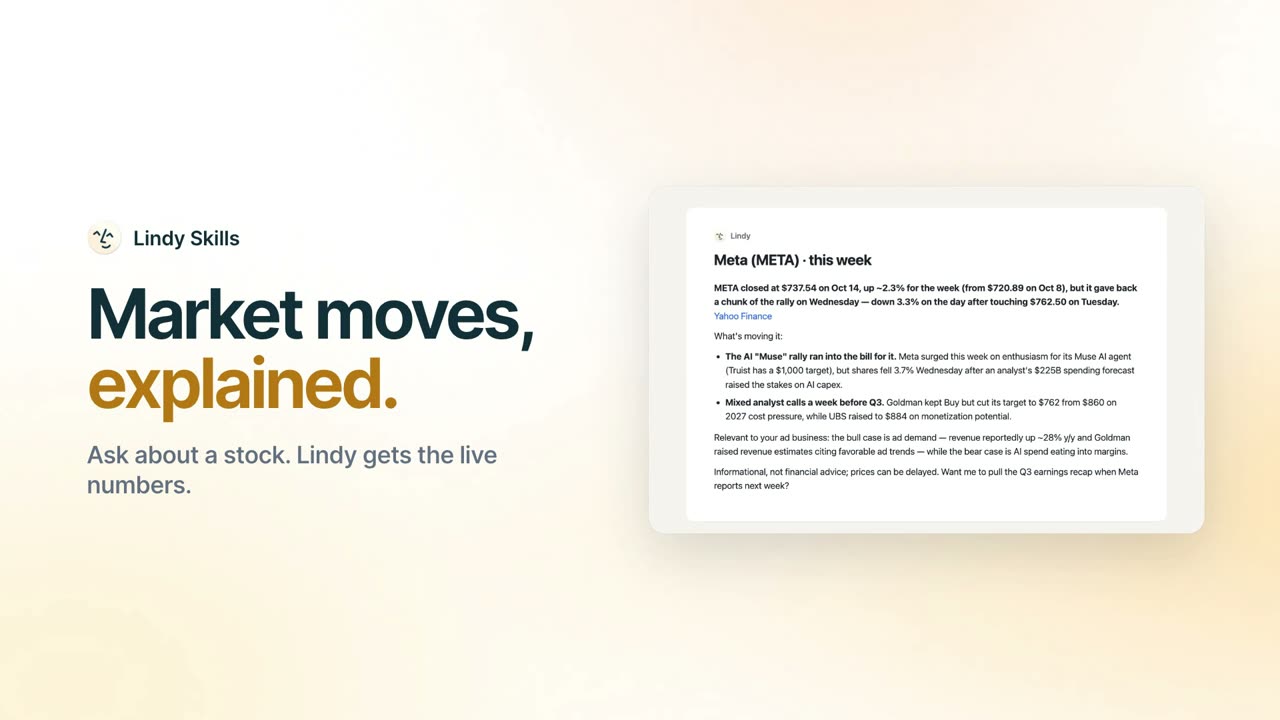
Ask about a stock. Lindy gets the live numbers. 0:29
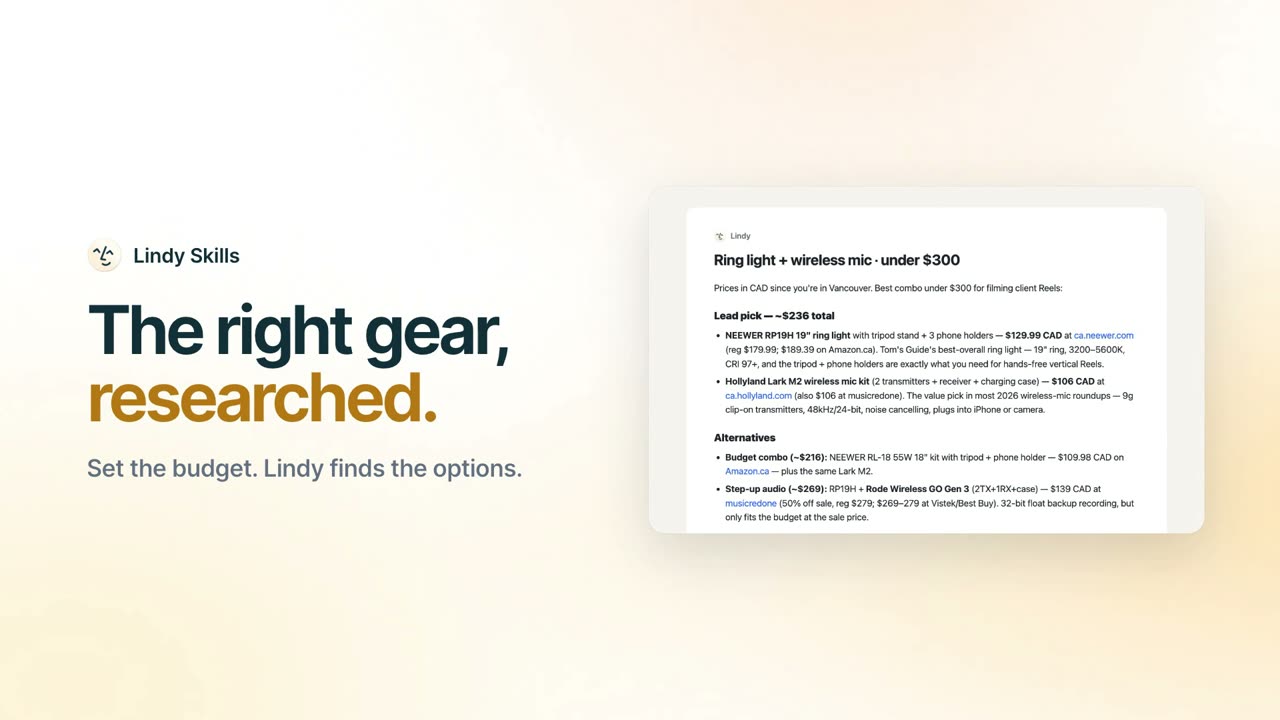
Set the budget. Lindy finds the options. 0:29
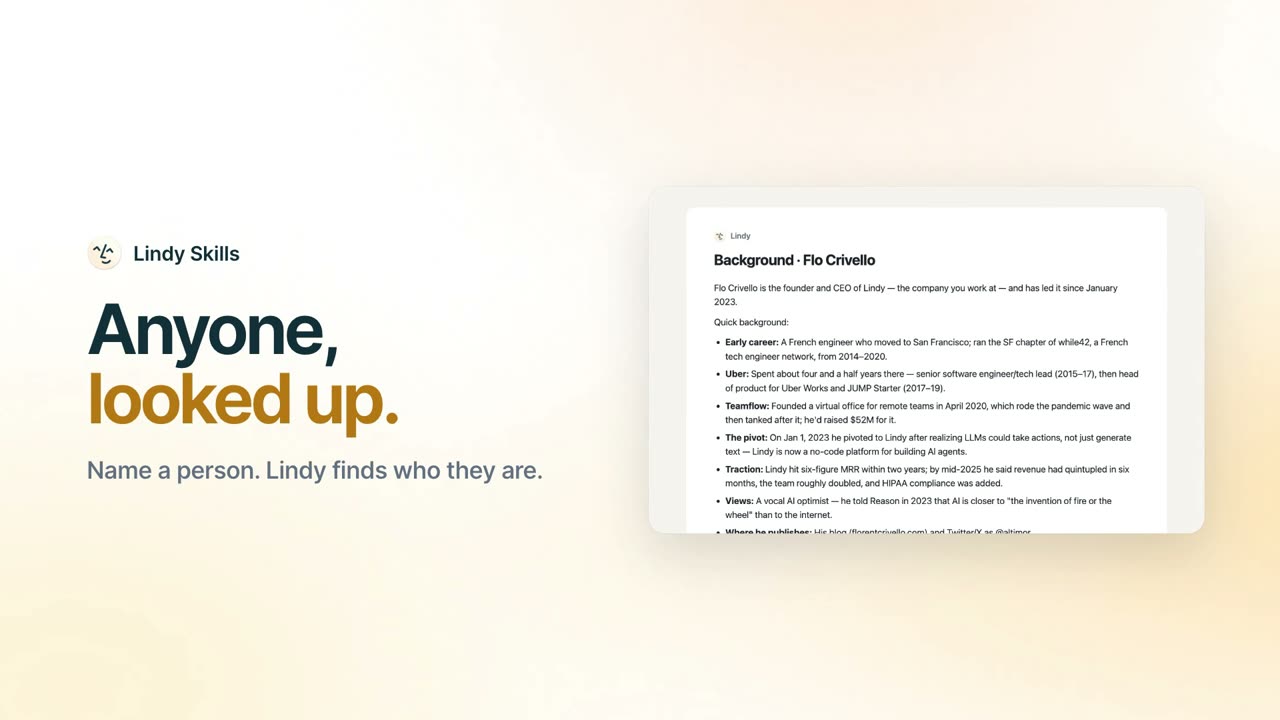
Name a person. Lindy finds who they are. 0:33
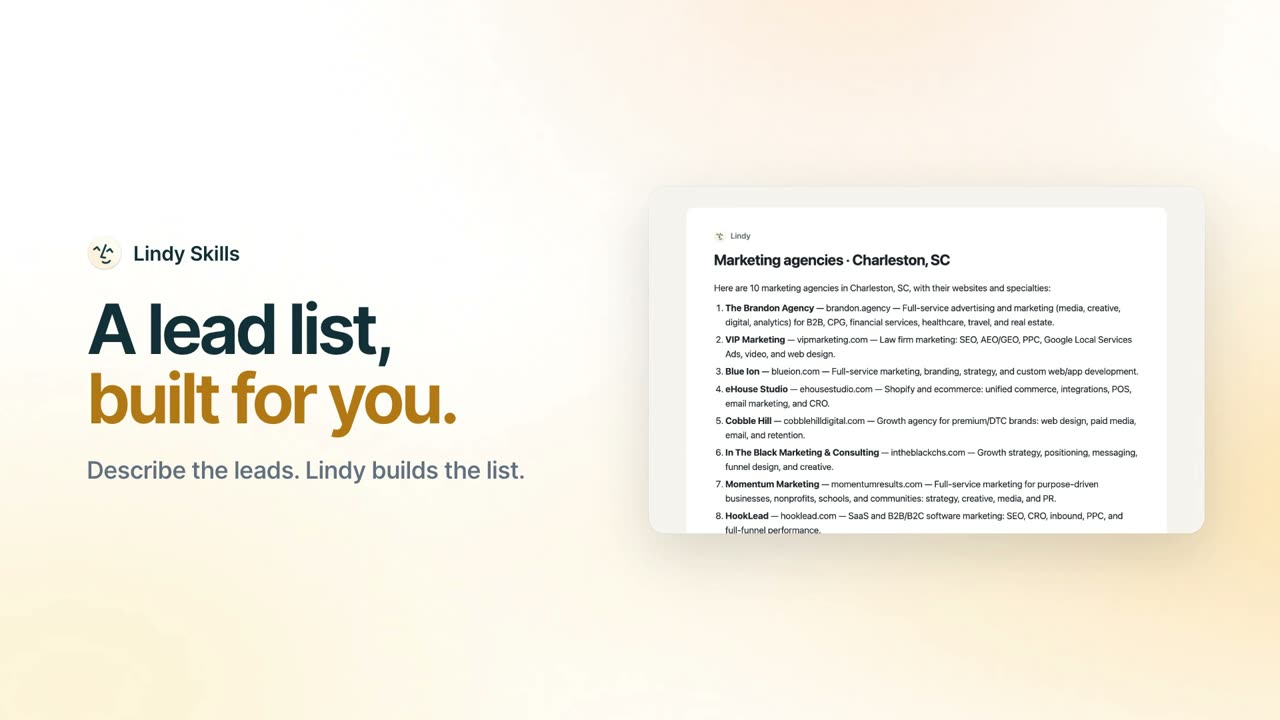
Describe the leads. Lindy builds the list. 0:33
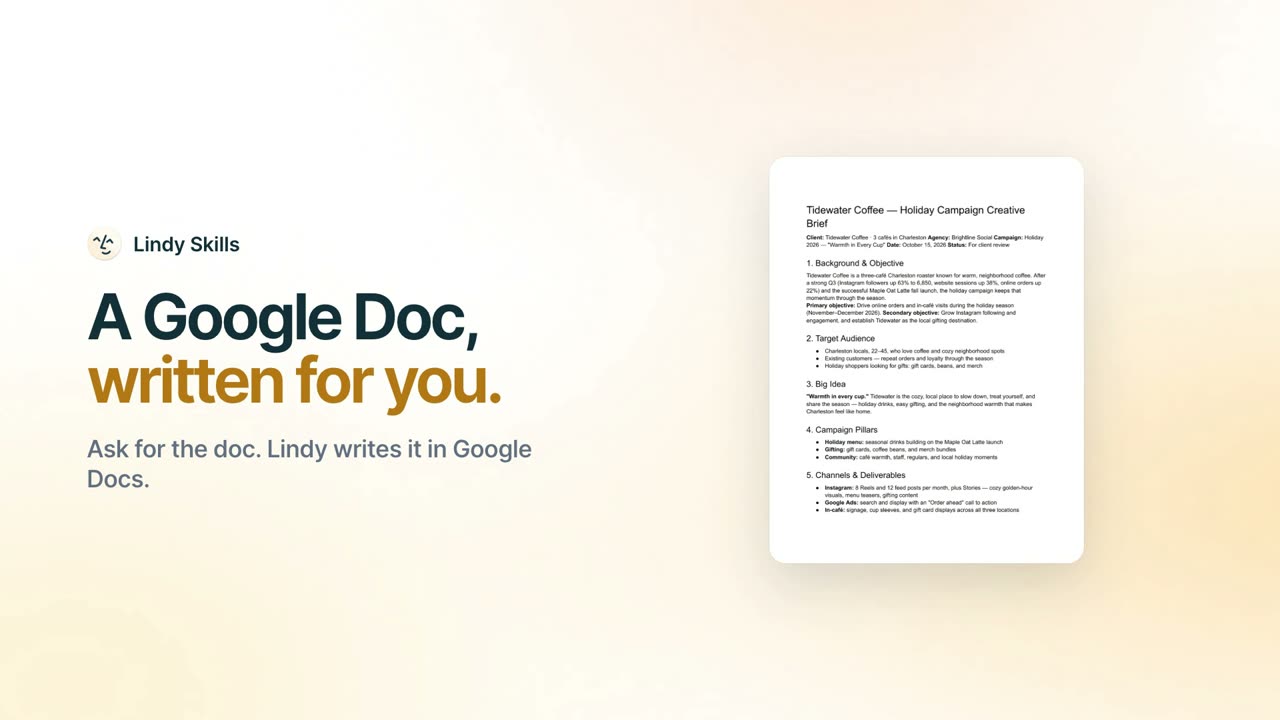
Ask for the doc. Lindy writes it in Google Docs. 0:29
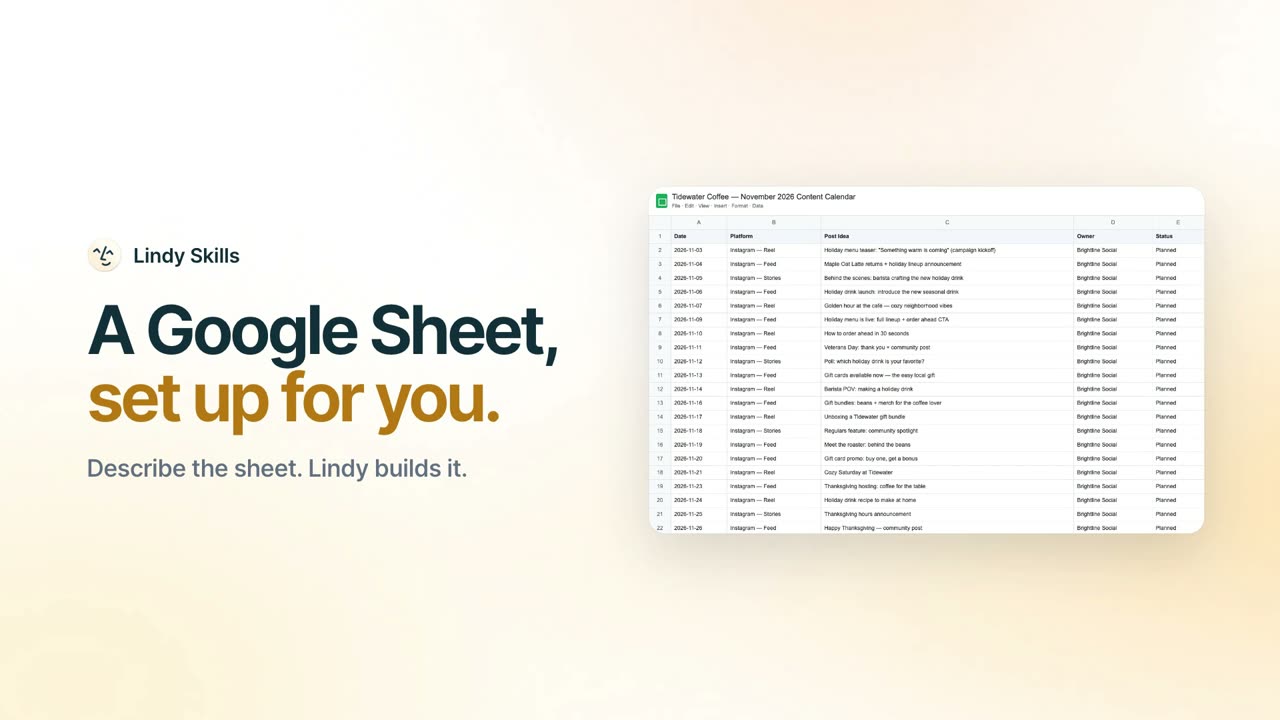
Describe the sheet. Lindy builds it. 0:29